Start Shift
Users will be prompted to enter their starting shift balances the first time they log in after the previous shift was closed. The shift balances cannot be modified after they have been entered, and so the associate will be prompted to confirm their balances before proceeding. The start date and time will be captured and associated to the user for that shift. When a user with the Stay_Cashier permission logs in to Stay, they will be prompted to start their shift by entering the required details in the Start Shift screen.
Refer to the following table to enter details in the Start Shift screen when starting a shift:
|
Field |
Description |
|---|---|
|
Cashier Name |
Displays the username of the cashier logged in to Stay. |
|
Cash Drawer |
Select a cash drawer from the drop-down list. This field is mandatory. If a cashier is sharing a drawer, starting balances are not required; users can proceed to save, and other input fields will be disabled. When cash drawers are not configured in the Cashier Setup section and a cashier tries to start their shift, they will be displayed the following message: No cash drawers found for this property. Please configure under cashier setup to start your shift. |
|
Use Denomination Tracker |
The property can configure whether the denomination tracker must be made mandatory or not. If the property decides to use the denomination tracker mandatorily the Use Denomination Tracker checkbox will not be displayed in the Start Shift screen and users will be forced to use the denomination tracker always. |
|
Cash Total |
|
|
Other |
This is a multi-select drop-down list of all other payment methods that are of the Cash payment class other than the Cash payment method itself. Users can select the preferred payment methods and enter the starting balance for each method. |
|
Other Total |
Displays the sum which is auto calculated for all other payment methods of the Cash payment class entered by the user. This field cannot be edited. |
|
Foreign Currency |
To add more foreign currencies to the Start Shift screen, users must click the add button. To delete the foreign currencies from the Start Shift screen, users must click the delete button. |
|
Foreign Currency Total |
Displays the sum of all amounts in the local currency entered for every foreign currency selected. This is a non-editable field. |
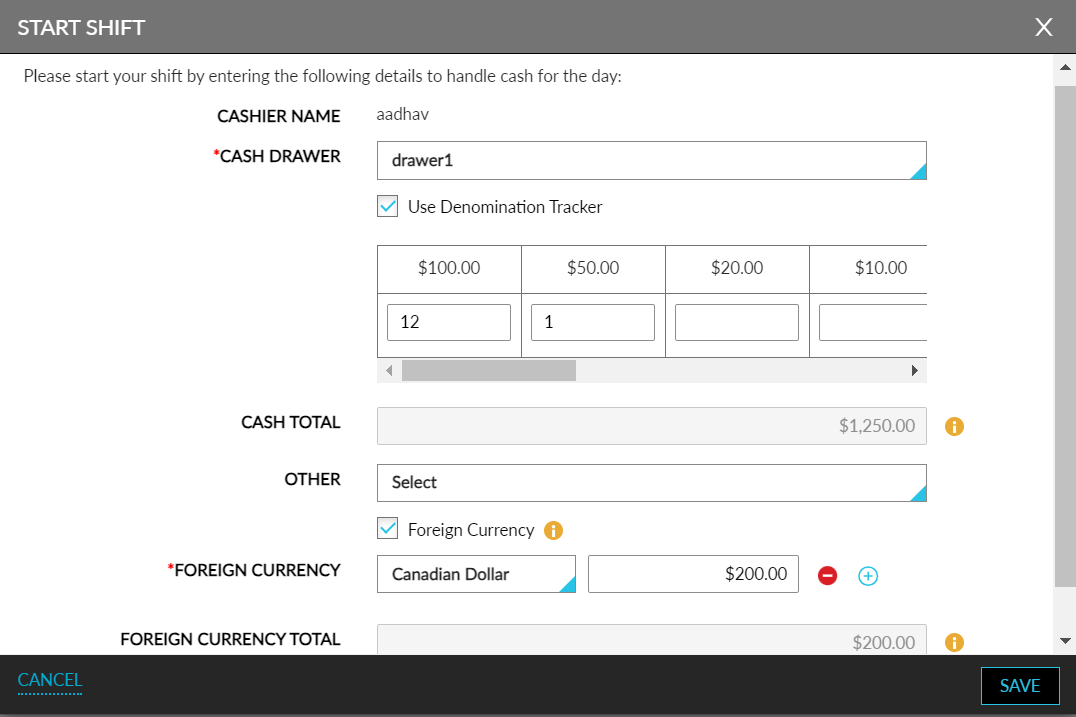
When a user tries to start their shift beyond the configured cash limits, they are required to obtain approval from the supervisor. Users with the Stay_Cashier_Approval permissions can approve a cashier to start the shift even if the maximum cash limit during sign in has exceeded. For this, the Exceed Cashier Shift Limit pop-up screen is displayed that allows supervisors to authenticate themselves with their credentials. If credentials are incorrect or the user does not have sufficient permissions the following message is displayed: User does not have the required permission.
When the feature setting is enabled and the option to track shifts is enabled in the Cashier Setup for the property, cashiers will be restricted from making cash payments without starting their shifts from the following sections in Stay:
-
Booking flow
-
Folio in reservations
-
Scheduled deposits
-
Groups folios
-
Checkout ➜ Deposit Policy
-
Cancel Reservation ➜ Cancellation Policy
-
Batch Operations: Check-In, Settle, Checkout Folio, Deposit Dues
-
Front Desk ➜ Pantry
-
Night Audit - Collect Deposit, Cancellation/No Show has Cancellation
-
Company Accounts
-
House Accounts
-
Rooms Management ➜ Lost & Found ➜ Shipper Details
-
Estimated Charges ➜ Collect Deposit Due
-
Group ➜ Deposit Due ➜ Collect deposit due